Microsoft Entra ID Backup Best Practices: 9 Things to Get Right
In this article
Most Entra ID backup advice stops at “turn it on.” That is the easy part.
What decides whether you recover from a bad day is everything around the backup: what you protect, how far back you can go, where an independent recovery copy lives, and whether you have ever tested a restore.
Microsoft Entra Backup and Recovery is a useful native recovery layer. It automatically backs up supported directory objects once per day and currently retains up to seven days of backup history. However, Microsoft's own recoverability guidance goes further: maintain a versioned known-good state, retain logs beyond the default window, define RTO and RPO, and run recovery drills.
So the useful question is not simply whether backup is enabled. It is whether your Entra ID backup and recovery plan still works when the incident is messy, old, or bigger than a single deleted object.
These are the Entra ID backup best practices I would get right first.
Know your scope first
Before you back up anything, decide what would actually hurt if it disappeared or changed. A tenant can contain thousands of objects and settings, and they are not equally important.
Start with business impact. Maybe it is the application registration behind a production system. Maybe it is a Conditional Access policy protecting admin portals. Maybe it is a role assignment, a PIM configuration, a service principal, or the account used by an automation nobody wants to rediscover during an outage.
Then map the dependencies around those objects. In practice, restoring the object is only half the job if applications, group memberships, role assignments or policies still point to something that no longer exists.
If you are not sure what belongs in scope, start with our breakdown of what actually needs protecting in Microsoft Entra ID . It covers the directory objects, configuration areas and recovery gaps that are easy to miss when the backup discussion begins and ends with users and groups.
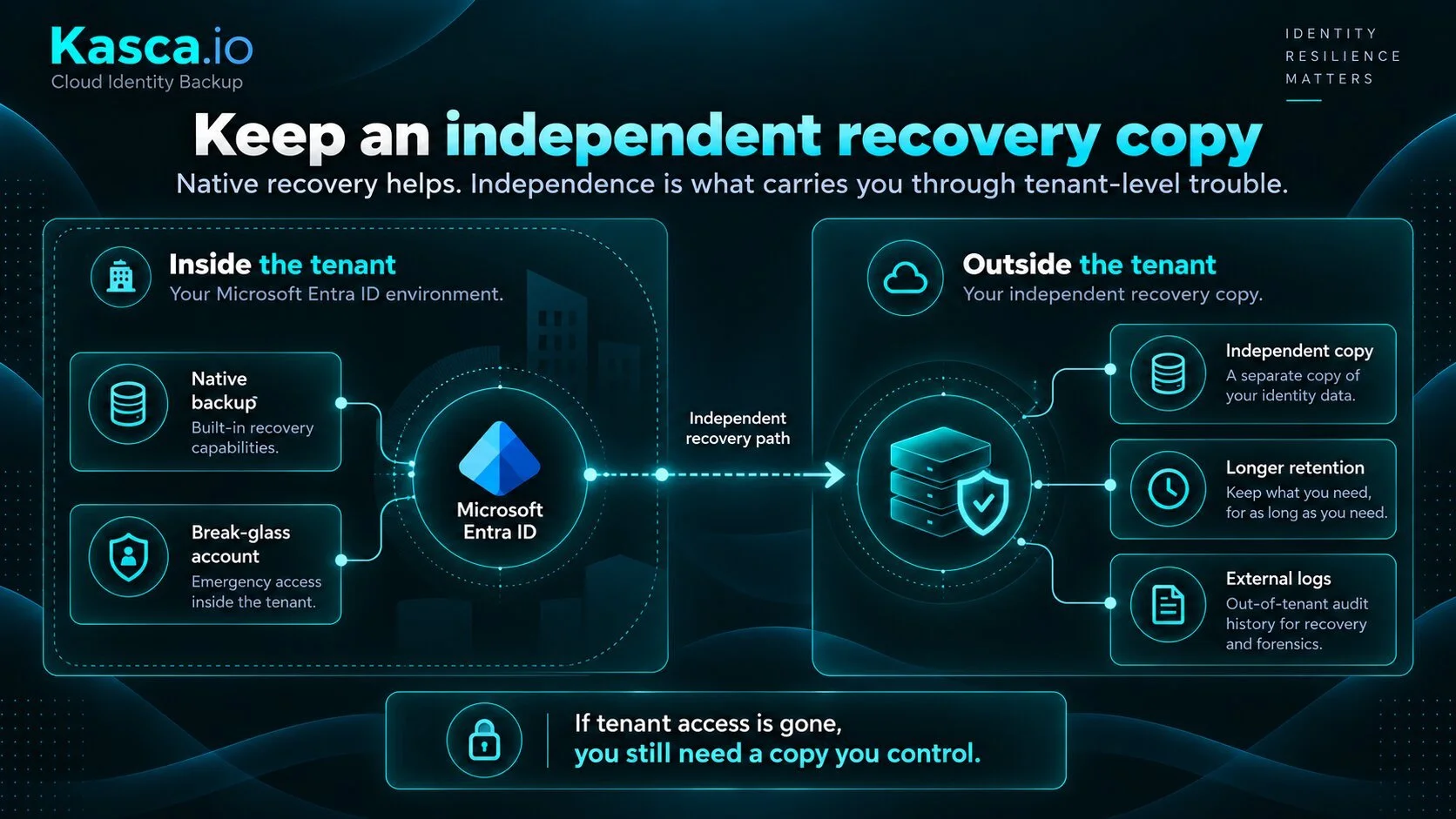
Keep an independent recovery copy
Microsoft Entra Backup and Recovery became a major improvement to native recoverability.
Microsoft creates the backups automatically, keeps them for up to seven days, and states that no signed-in user or application can turn them off, delete them or modify them. That is meaningful protection against a compromised administrator trying to destroy the native recovery points.
Still, native recovery and recovery independence are different questions.
Microsoft stores the backup data within its own service boundary, in the same geo-location as the Entra tenant. Therefore, if your recovery requirements include loss of tenant access, a provider-side access problem, longer retention, unsupported objects or hard-deleted objects, you need another recovery path as well.
Microsoft now says the same thing in its tenant recoverability guidance: maintain an external, versioned, known-good state and extend coverage beyond built-in capabilities when your recovery scenarios require it.
Set retention by detection time, not convenience
Ask how long it would realistically take your team to notice that something is wrong. Not in the best case. In the normal case, when a change is quiet, the affected application is rarely used, or the attacker has no interest in being obvious.
Microsoft Entra Backup and Recovery currently creates one backup per day and retains up to seven days of backup history.
That can be enough for a quickly detected configuration mistake. However, it says much less about a bad change discovered three weeks later.
The same logic applies to logs. Microsoft Entra retains audit and sign-in logs for seven days on the Free tier and 30 days with Entra ID P1 or P2.
If you need a longer forensic trail, you have to retain it elsewhere, for example through Azure Storage, Log Analytics, a SIEM, or another independent log store.
That matters because detection time and recovery time are connected.
A slow attack, an insider change, or a misconfiguration with delayed impact can outlive a short retention window. By the time you ask who changed what and when, the evidence can already be gone.
So set retention around the longest plausible detection and investigation window your organization is willing to accept. Then verify that the backup data and the logs both survive for at least that long.
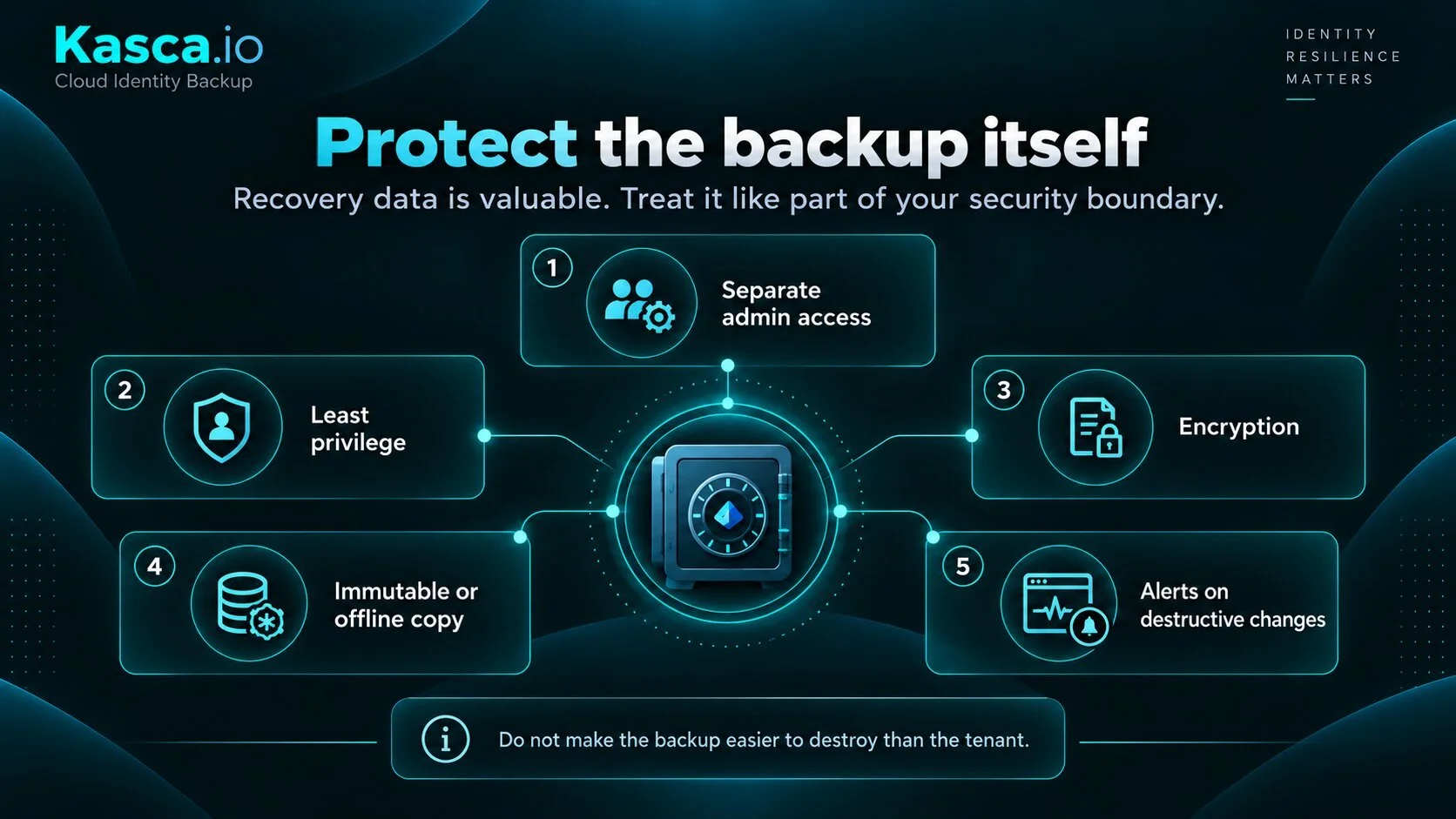
Protect the backup itself
A backup is a concentrated copy of your identity environment. That makes it useful to you and interesting to an attacker.
First, keep backup administration separate from everyday tenant administration where the architecture allows it.
Next, apply least privilege to backup read, export, retention and restore operations.
Finally, make deletion or destructive retention changes difficult enough that one compromised account cannot silently erase your recovery history.
- Use separate credentials or administrative boundaries for the backup platform.
- Limit who can read, export, restore or delete backup data.
- Encrypt backup data at rest and in transit.
- Keep an immutable, offline or otherwise isolated copy where your risk model requires it.
- Alert on destructive backup operations and changes to retention or backup configuration.
In other words, do not make the backup easier to destroy than the tenant itself.
Build emergency access that does not depend on your normal admin path
Break-glass accounts are still necessary.
They protect you from a class of failures that independent backup cannot solve, such as a Conditional Access mistake that locks out normal administrators.
Microsoft recommends maintaining at least two cloud-only emergency access accounts, using phishing-resistant authentication such as FIDO2 passkeys or certificate-based authentication, storing the credentials safely, monitoring sign-ins, and validating the accounts regularly.
Microsoft also recommends excluding these accounts from Conditional Access policies that could block or restrict sign-in.
However, understand the boundary.
A break-glass account helps when the problem is inside the tenant and authentication still works. It does not create a second Microsoft identity service.
In the August 2026 tenant-deauthentication case, the break-glass account returned the same tenant-level error as every other account.
Therefore, document the out-of-band support path too.
Record the tenant ID, verified domains, billing ownership, CSP or account contacts, and the phone or escalation route you would use if nobody can sign in.
Keep that information somewhere that does not require the affected tenant.
Test restores, including the awkward cases
A backup you have never restored is an assumption.
Test something real, then check whether the restored object is actually usable.
Start with an easy case, but do not stop there. Restore an account with group memberships. Test an application registration. Test a policy change. Then try the cases where native recovery has different rules.
For example, Microsoft Entra Backup and Recovery does not recover hard-deleted objects.
If you recreate one, it gets a new Object ID, which means dependencies that referenced the original object may need to be re-linked.
User passwords are not restored either. Application secrets also require their own recovery or rotation process.
Those details are exactly why restore testing matters.
The question is not simply “did the restore job complete?”
It is “does authentication work, do the right assignments still point to the object, and does the application behave the way it did before the incident?”
Write a restore runbook before you need it
Different incidents need different recovery sequences.
A bad bulk script is not the same problem as a compromised Global Administrator, and neither is the same as losing access to the tenant itself.
Your runbook should say what happens first, who owns each decision, and which systems have to come back before others can work.
It should also include the communication path if Entra ID, Microsoft 365 or your normal corporate mail is unavailable.
At minimum, define:
- the incident scenarios you are planning for
- the first systems, identities and policies to recover
- restore order and object dependencies
- who is authorized to trigger recovery
- where the recovery credentials and documentation live
- how staff communicate if normal identity-dependent tools are unavailable
- your Recovery Time Objective and Recovery Point Objective
- the validation steps that prove recovery is actually complete
Be realistic with RTO and RPO.
If recovering a critical application would take a day because secrets must be rotated and dependencies re-linked, writing “one hour” into a continuity plan does not make it true.
Use the native protections too
Independent backup does not replace Microsoft's own recovery and prevention controls. Use the layers together.
Soft delete is still the quickest path when a supported object was deleted recently.
Microsoft Entra Backup and Recovery is the lowest-effort restore path for supported objects and properties within its retention window.
Protected Actions can add Conditional Access requirements to sensitive permissions, including selected hard-delete operations.
PIM, least privilege and change monitoring reduce the chance that you need a restore in the first place.
Then test those controls as part of the same recovery exercise.
For example, restore something with assigned roles, group memberships or application dependencies and measure how long it takes to return to a known-good state.
The point is not to choose between native recovery and independent backup.
The point is to know exactly which layer solves which failure.
Design for audits before the request arrives
If your organization is audited regularly, recovery data can do more than get you out of an incident.
It can also show what the identity environment looked like at a specific point in time.
Map common audit requests to the data you already retain. For example, who held a privileged role, which Conditional Access policy was active, when an application changed, or what the tenant looked like six months earlier.
Then automate the evidence gathering where it makes sense.
The less time your team spends reconstructing historical state from screenshots, tickets and memory, the easier the audit becomes.
Good Entra ID backup is not one setting.
It is a recovery habit: know what matters, keep enough history, preserve a usable path outside the failure domain, and practice getting the environment back.
Keep a copy that does not depend on your tenant
See how Kasca adds a customer-controlled recovery layer for Microsoft Entra ID with retention you control, granular recovery, and backups outside the tenant they protect.
Entra ID backup best practices FAQ
Quick answers to the practical questions that come up when an Entra ID backup plan moves from enabled to tested.
What are the most important Entra ID backup best practices?
Start by defining critical objects and dependencies, keep enough history to outlast realistic detection times, retain audit evidence beyond native windows, protect the backup itself, maintain emergency access, document a restore runbook, and test restores regularly. Native Backup and Recovery, soft delete and Protected Actions should be part of the same layered recovery plan.
How long does Microsoft Entra Backup and Recovery keep backups?
Microsoft currently creates one backup per day for supported Entra ID objects and retains up to seven days of backup history. This is separate from soft-delete windows that apply to supported object types.
Is Microsoft Entra Backup and Recovery enough on its own?
That depends on your recovery requirements. Native Backup and Recovery is a useful restore layer for supported objects and properties inside its retention window. Microsoft also recommends maintaining an external, versioned known-good state and considering additional recovery options when you need longer retention, unsupported object coverage, hard-delete recovery or independence from the normal tenant access path.
How long are Entra ID audit and sign-in logs retained?
Microsoft Entra ID currently retains audit and sign-in logs for seven days with Entra ID Free and 30 days with Entra ID P1 or P2. Organizations that need longer history should route or copy those logs to longer-term storage or analytics tooling.
Can Microsoft Entra Backup and Recovery restore hard-deleted objects?
No. Microsoft states that hard-deleted objects cannot be recovered or recreated through an Entra Backup and Recovery job. Recreating the object produces a new Object ID, so dependent assignments, memberships, policies or application references may need to be re-established.
Do break-glass accounts protect against every Entra ID lockout?
No. Emergency access accounts are designed to help when normal administrative access is blocked by tenant configuration, federation or similar failures. They do not provide a separate authentication service if the tenant itself is deauthenticated or otherwise unavailable.
How often should you test Entra ID restores?
There is no single interval that fits every organization. Test often enough that the process remains current with your tenant, applications and staffing, and repeat testing after material identity or architecture changes. Microsoft's recoverability guidance recommends periodic recovery drills, while its emergency-access guidance recommends validating emergency accounts at least every 90 days.